
Discord alerts
Bugsink sends issue alerts to a Discord channel using an incoming webhook.
Create the webhook in Discord
- Open the Discord server’s Server Settings.
- Open Integrations → Webhooks and create a webhook.
- Give it a recognizable name, choose the destination channel, and select Copy Webhook URL.
You need Discord’s Manage Webhooks permission. The URL contains the webhook token, so treat it as a secret. Discord’s Intro to Webhooks shows the server-side flow.
Add the webhook to Bugsink
- Open Projects and select the project’s megaphone icon (Alerting Settings).
- Select Add, enter a display name, and choose Discord.
- Paste the Discord webhook URL and save.
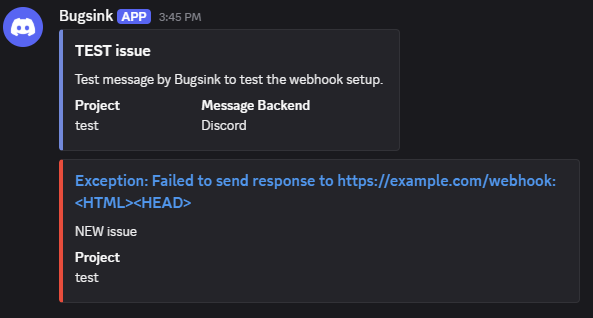
- Select Test and check the Discord channel.
The Discord webhook determines the destination channel. Create another webhook and another Bugsink messaging service when the same project’s alerts should go to more than one channel.
See the alerts overview for alert conditions, multiple destinations, and delivery-failure reporting.