
Mattermost alerts
Bugsink sends alerts to Mattermost using an incoming webhook.
Create the incoming webhook in Mattermost
- Open Product menu → Integrations → Incoming Webhooks.
- Select Add Incoming Webhook, enter a name and description, and choose its default channel.
- Create the webhook and copy the generated URL.
If Integrations is unavailable, a Mattermost system administrator may need to enable incoming webhooks. Treat the URL as a secret: anyone with it can post to the configured Mattermost server. See Mattermost’s incoming-webhook documentation for server-side details.
Add the webhook to Bugsink
- Open Projects and select the project’s megaphone icon (Alerting Settings).
- Select Add, enter a display name, and choose Mattermost.
- Paste the webhook URL. Optionally enter a channel name such as
town-square, or@usernamefor a direct message. - Save the service, select Test, and check Mattermost.
Leave Channel empty to use the channel selected when the Mattermost webhook was created. An override can target a public channel, a private channel the webhook creator belongs to, or a direct message.
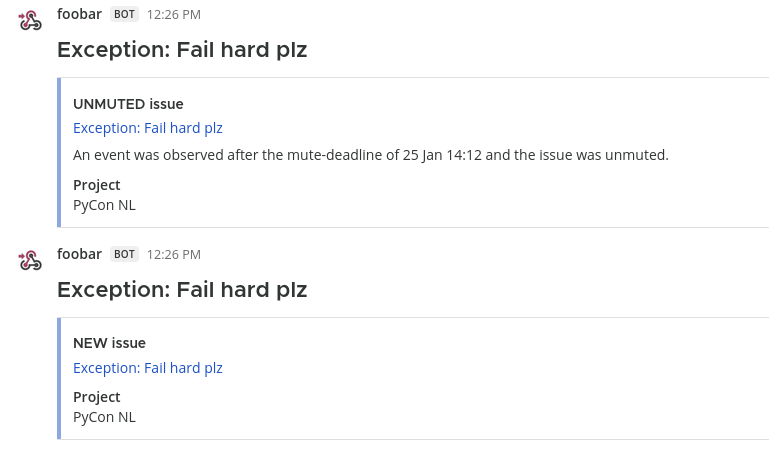
See the alerts overview for alert conditions, multiple destinations, and delivery-failure reporting.