
Microsoft Teams alerts
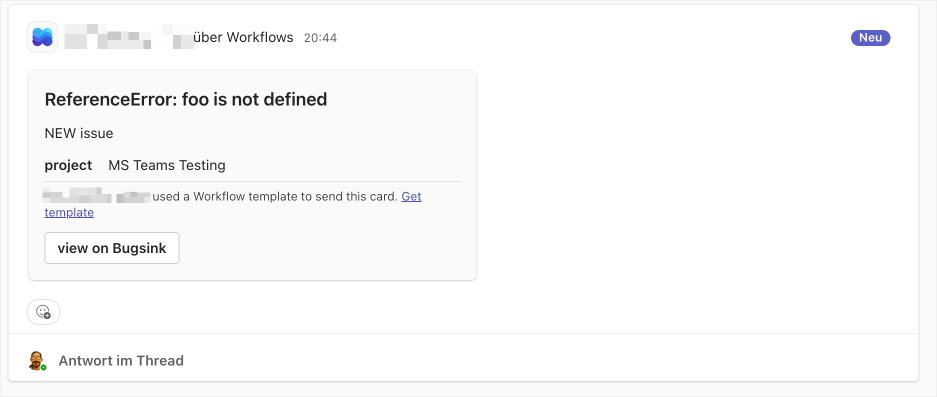
Bugsink sends alerts to a Teams channel or chat through a Microsoft Teams Workflow. Each alert is formatted as an Adaptive Card.
Create the incoming-webhook Workflow
- In Teams, select More options next to the destination channel or chat, then select Workflows.
- Choose the webhook template for sending webhook alerts to that channel or chat.
- Confirm the account and destination, then select Add workflow.
- Copy the HTTP POST URL shown after the workflow is created.
Microsoft documents this flow in Create incoming webhooks with Workflows for Microsoft Teams. Use the Workflow URL, not a legacy Microsoft 365 Connector URL.
Add the Workflow to Bugsink
- Open Projects and select the project’s megaphone icon (Alerting Settings).
- Select Add, enter a display name, and choose Microsoft Teams.
- Paste the Workflow’s HTTP POST URL and save.
- Select Test and check the Teams channel or chat.
The Workflow determines the destination. Create another Workflow and Bugsink messaging service for each additional channel or chat.
See the alerts overview for alert conditions, multiple destinations, and delivery-failure reporting.