
Slack alerts
Bugsink sends alerts to Slack using a Slack incoming webhook. The webhook belongs to one Slack channel; Bugsink does not need a Slack user account or OAuth token.
Create the incoming webhook in Slack
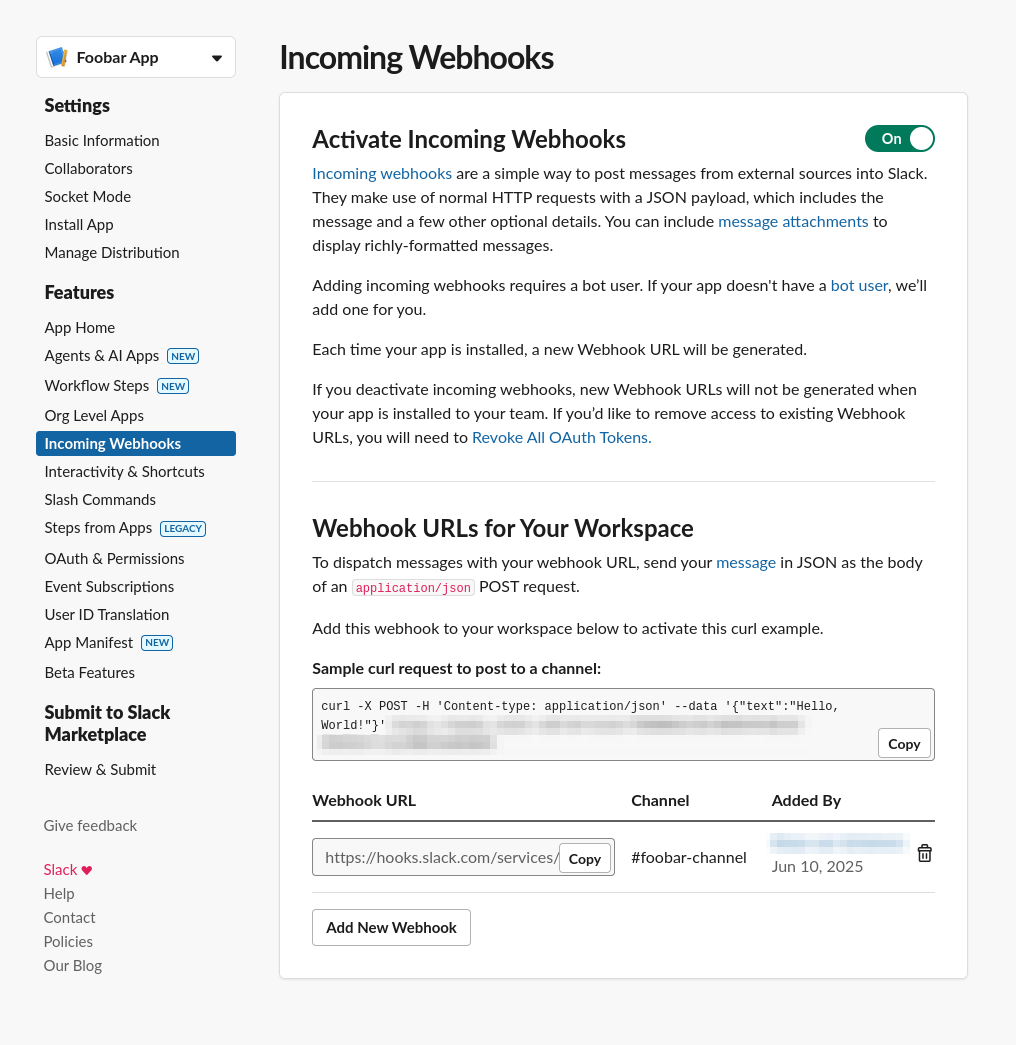
- Create a Slack app for the workspace, or open an existing app.
- Open Incoming Webhooks and turn on Activate Incoming Webhooks.
- Select Add New Webhook to Workspace, choose the destination channel, and authorize the app.
- Copy the URL under Webhook URLs for Your Workspace.
The URL is tied to the channel selected during authorization. Treat it as a secret: anyone with the URL can post to that channel. Slack documents the complete flow in Sending messages using incoming webhooks.
Add the webhook to Bugsink
- Open Projects and select the project’s megaphone icon (Alerting Settings).
- Select Add and enter a display name such as
#errors on company Slack. - Choose Slack, paste the webhook URL, and save.
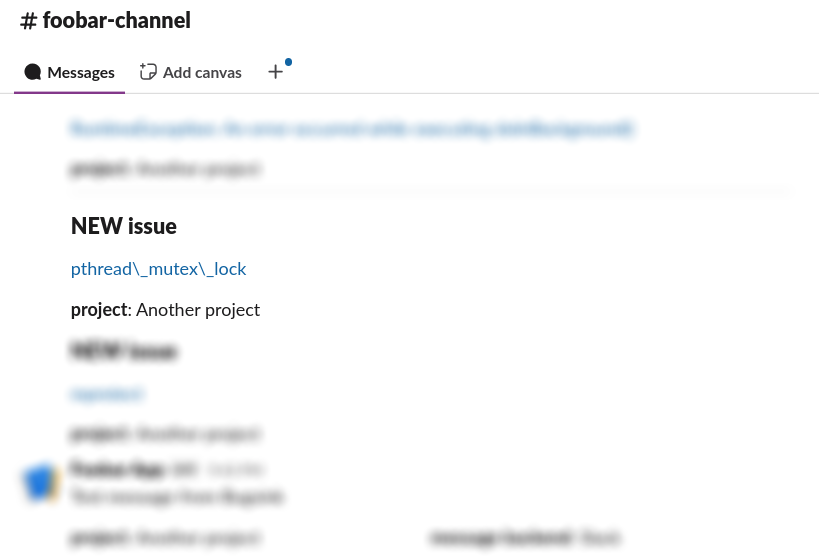
- Select Test and check the Slack channel.
The display name is only used inside Bugsink. Slack controls the channel, app name, and icon associated with the incoming webhook.
See the alerts overview for alert conditions, multiple destinations, and delivery-failure reporting.