
Triage issues in Bugsink
Some errors are more important than others, and time is typically limited. To help you decide what to look at first, Bugsink offers various ways to triage incoming issues.
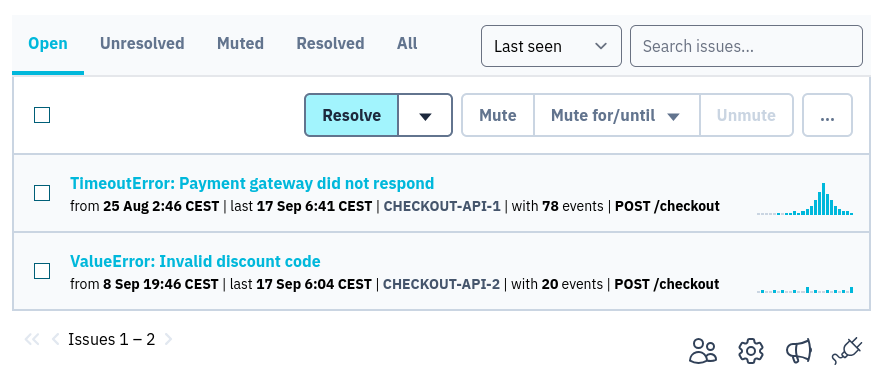
The list of issues show event counts and small charts (“trends”) for each issue and can be sorted by either the number of events or the last time an event occurred.
If you find that multiple events are not correctly grouped together into issues start with the documention for grouping.
Start with the issue list
You can view your issues either through the global (cross-project) list of issues (reachable via the menu item “Issues”) or by navigating to a specific project.
In each case the list has a set of 5 tabs at the top:
- Open contains issues which have not been dealt with yet in any way (i.e. that have not been marked as resolved, and have not been muted). This is the default tab and the most logical place to start.
- Unresolved contains the explicitly muted issues as well as the open issues.
- Muted contains issues you have deliberately taken out of the Open queue.
- Resolved contains only issues that have been specifically marked as fixed
- All all issues, regardless of state.
You can order the list by either last seen or most events. Sorting by number of events can be helpful to triage “big offenders” first, sorting by last seen moves the focus to the what’s happening right now.
Trends
Each issue in the list contains some key information for the process of triaging it: the number of times it occured (the number of events), the last time it occurred, and a small chart (“trends”) of occurrences over the last 24 hours.
This immediately gives some sense of what’s going on:
- A spike at the right edge means the issue has become active recently.
- A steady row of bars points to a recurring background problem.
- A flat line followed by activity often lines up with a deployment or an external change.
- No recent bars (but high event count) describes an old or intermittently occuring issue.
Note: each sparkline has its own scale, so compare the shape of two sparklines, not their bar heights. Use the issues’ event counts to compare volume between issues. Hovering over the graph shows per-hour event counts.
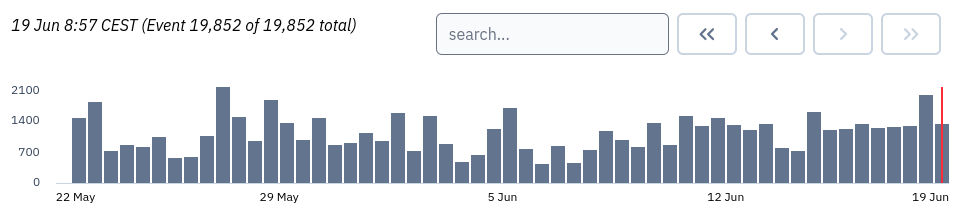
Clicking through to an individual issue, the Event Details tab contains a larger, 28-day chart. This chart can be helpful to get the sense of a longer-term trend.
Search for the relevant issues
On a project’s issue list, a plain-text query searches the exception type and value. A structured query uses exact
key:value filters. You can combine the two:
TimeoutErrorfinds that text in an exception type or value.environment:production handled:falserequires both tag values.release:2.6.0 TimeoutErrorcombines a tag filter with plain text.user.email:developer@example.orgfinds errors associated with one user.url:"https://example.org/checkout"finds errors reported for that request URL.
Use double quotes when a value contains spaces. Colons and escaped quotes are supported inside values, so complete URLs work as expected.
The url tag contains the request URL without its query string or fragment. These URLs therefore match the same page:
https://example.org/checkout?coupon=SAVE#payment https://example.org/checkout?coupon=OTHER
Search both with:
url:"https://example.org/checkout"
URL tags are created for newly ingested events. After upgrading an older installation, run bugsink-manage init_tags
if you want to derive current tags, including URLs, from retained events that were already in the database.
Bugsink also deduces searchable tags for releases, environments, servers, transactions, users, browsers, operating systems, handled state, and trace IDs. Applications can add their own tags through the SDK. The complete built-in list is in Deduced Tags.
Search within an issue
Opening a result carries the query into the issue view. The search box on the Stacktrace, Event Details, Breadcrumbs, and Event List pages then moves through only the events that match.
An issue can contain thousands of occurrences with different context. To narrow those events further:
- Search the issue list for
environment:productionto find affected issues. - Open an issue and add
user.email:developer@example.orgor a request URL. - Move between the matching events while comparing their stacktraces, local variables, request data, and breadcrumbs.
On the Event Details chart, a search adds an overlay: the background bars show all events and the darker bars show the retained events that match the query. Clicking a bar keeps the filter and jumps to a matching event in that bucket.
Total trend counts come from the hourly buckets. Search, including the overlay, uses retained event and tag rows. If older payloads have been evicted, the overlay can contain fewer events than Bugsink originally received.
Inspect the events
After selecting an issue, use its stacktrace and event context to investigate the failure:
- Stacktrace shows the call stack, source context, and captured local variables.
- Event Details contains request, runtime, user, and custom context.
- Tags shows how occurrences are distributed across releases, environments, users, browsers, and custom tags.
- Event List shows the retained occurrences, with search available for narrowing the list.
- History records resolving, muting, unmuting, reopening, and regressions.
For example, the tag breakdown may show that 95% of occurrences come from one release, browser, or server.
Issue Workflow
Part of the process of triaging an issue is to actually let Bugsink know that issues have been resolved. An issue can be resolved in one of three ways:
- Resolve marks it fixed without tying the decision to a release. Any new events for the issue are considered regressions.
- Resolved in next release allows events from the current release while the fix is waiting to be deployed.
- Resolved in latest records the fix against the latest release Bugsink has observed.
A resolved issue can be reopened manually. It is also reopened automatically as a regression when an event arrives in a release where the issue should have been fixed.
Muting
Mute means that the issue is known but you prefer not to hear about it (presumably: because it’s not actually worth your time). Muting an issue hides it from the “open” tab. You can mute in 3 ways:
- indefinitely;
- for a fixed period, such as one day or one week; or
- until its volume crosses a threshold, such as 100 events in 24 hours.
A timed mute ends when the next event arrives after the deadline. A volume-based mute ends when an event crosses the configured threshold. In either case Bugsink marks the issue as unmuted and can alert on that state change. You can also unmute it manually.
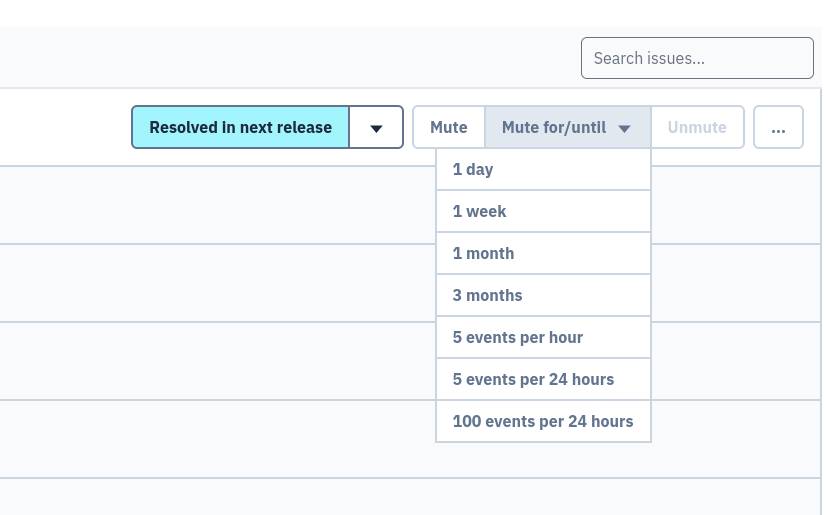
The same actions work in bulk from the issue list. Select several issues and resolve, mute, or unmute them together. Release-specific resolution remains project-scoped, because a cross-project selection does not share one release.