
Google Chat alerts
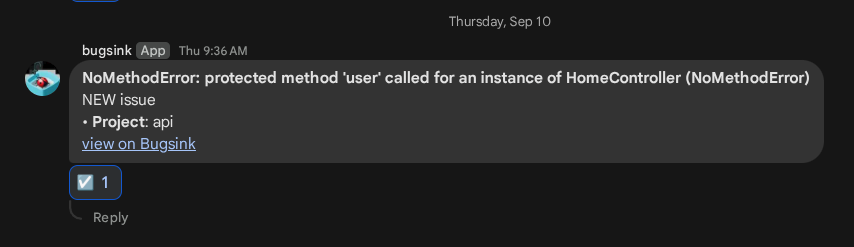
Bugsink sends issue alerts to a Google Chat space using an incoming webhook. Each alert includes the issue title, project, and a link to the issue in Bugsink.
Create the webhook in Google Chat
You need a Google Workspace Business or Enterprise account, and your organization must allow incoming webhooks.
- Open Google Chat in a browser and select the destination space.
- Open the menu next to the space name and select Apps & integrations → Add webhooks.
- Give the webhook a recognizable name, such as Bugsink, and save.
- Open the webhook’s menu and select Copy link.
If Add webhooks is unavailable, ask your Workspace administrator to allow incoming webhooks. Webhooks cannot be configured from the Chat mobile app. Google’s incoming-webhook guide documents the setup.
The copied URL contains a secret token. Keep the complete URL, including its query parameters, private.
Add the webhook to Bugsink
- Open Projects and select the project’s megaphone icon (Alerting Settings).
- Select Add, enter a display name, and choose Google Chat.
- Paste the complete webhook URL and save.
- Select Test and check the Google Chat space.
The webhook determines the destination space. To send the same project’s alerts to another space, create a webhook there and add another messaging service in Bugsink.
See the alerts overview for alert conditions, multiple destinations, and delivery-failure reporting.